 Clipumo
Guide
How to burn subtitles into a video for free
“Burning in” subtitles means drawing them into the video picture itself, so they appear on every platform and player without the viewer turning anything on. Here's how to do it in your browser with Clipumo, plus how to fix the subtitle problems people run into most.
Burned-in vs. soft subtitles
Soft subtitles are a separate track the viewer can switch on or off. They're great for long videos on platforms that support them. Burned-in subtitles are part of the image: they can't be turned off, but they always show, which is why short-form videos use them.
What a valid SRT file looks like
Each caption has a number, a timing line and the text, with a blank line between captions:
1
00:00:01,000 --> 00:00:03,500
This is the first caption

2
00:00:04,000 --> 00:00:06,000
And a second one,
split over two lines
Burn them in with Clipumo
- 1Open your video in the editor and trim the part you want.
- 2Choose a format (9:16, 1:1 or 16:9) and position the frame.
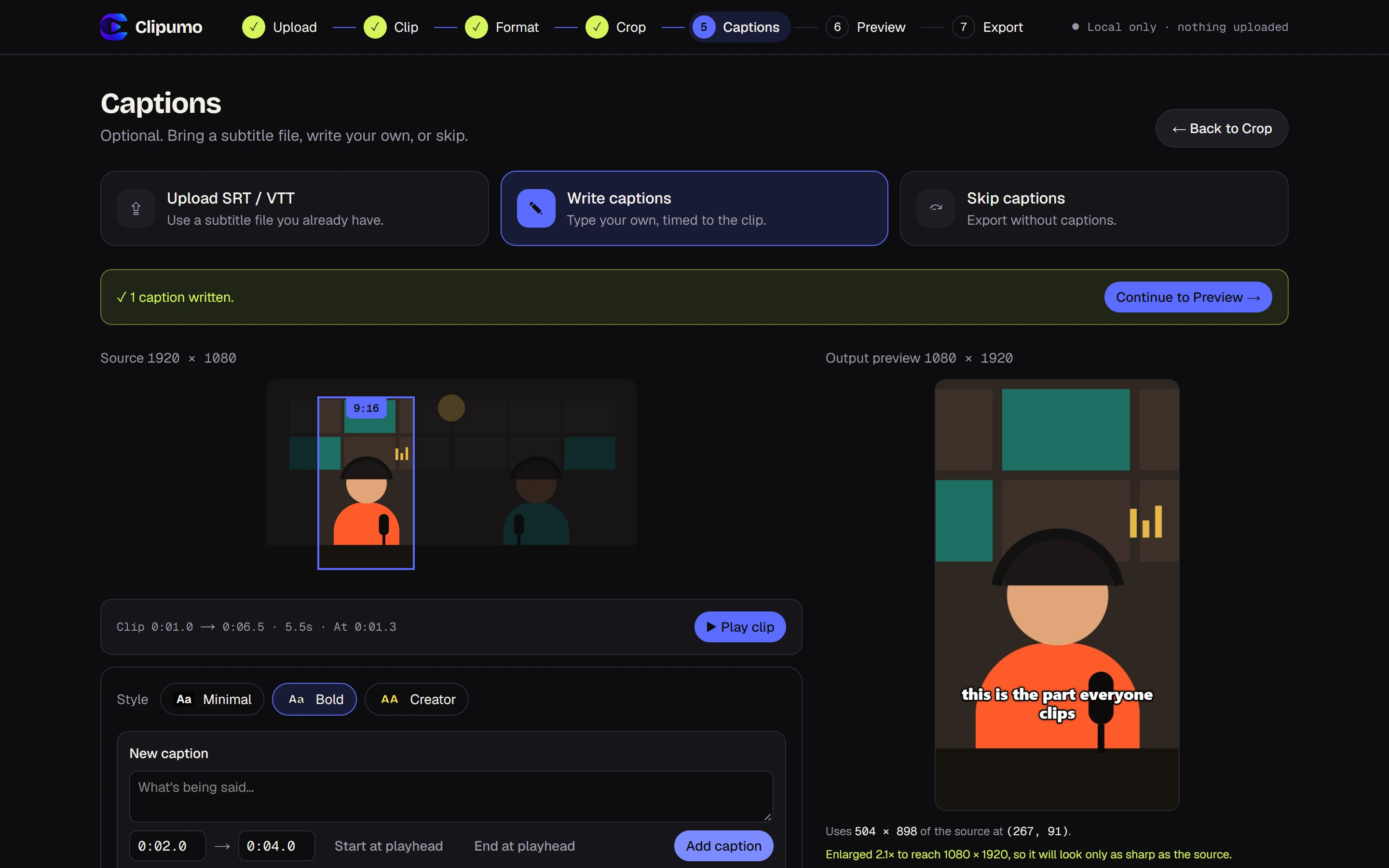
- 3In the Captions step, choose “Upload SRT / VTT” and pick your file.
- 4Choose a style (Minimal, Bold or Creator) and check the live preview.
- 5Preview the whole clip, then export the MP4 with the captions burned in.
Fixing common subtitle problems
- “Invalid timestamp”: minutes and seconds must be below 60, e.g. 00:01:59,500, not 00:00:75,000. Clipumo tells you the line number.
- “End time is before start time”: the two times on that line are swapped.
- No captions inside the clip: subtitle times are positions in the full video. Make sure the file matches the video you opened.
- Strange characters: the file may use an old encoding. Clipumo reads Windows-1252 automatically, but saving the file as UTF-8 is the safest fix.
Questions
Can I burn in subtitles without a subtitle file?
Yes. Choose “Write captions” and type each caption with its start and end time. They're burned in the same way.
Is it free?
Yes. There's no account, no watermark and no upload.