 Clipumo
9:16 video cropper
Crop any video to 9:16 vertical
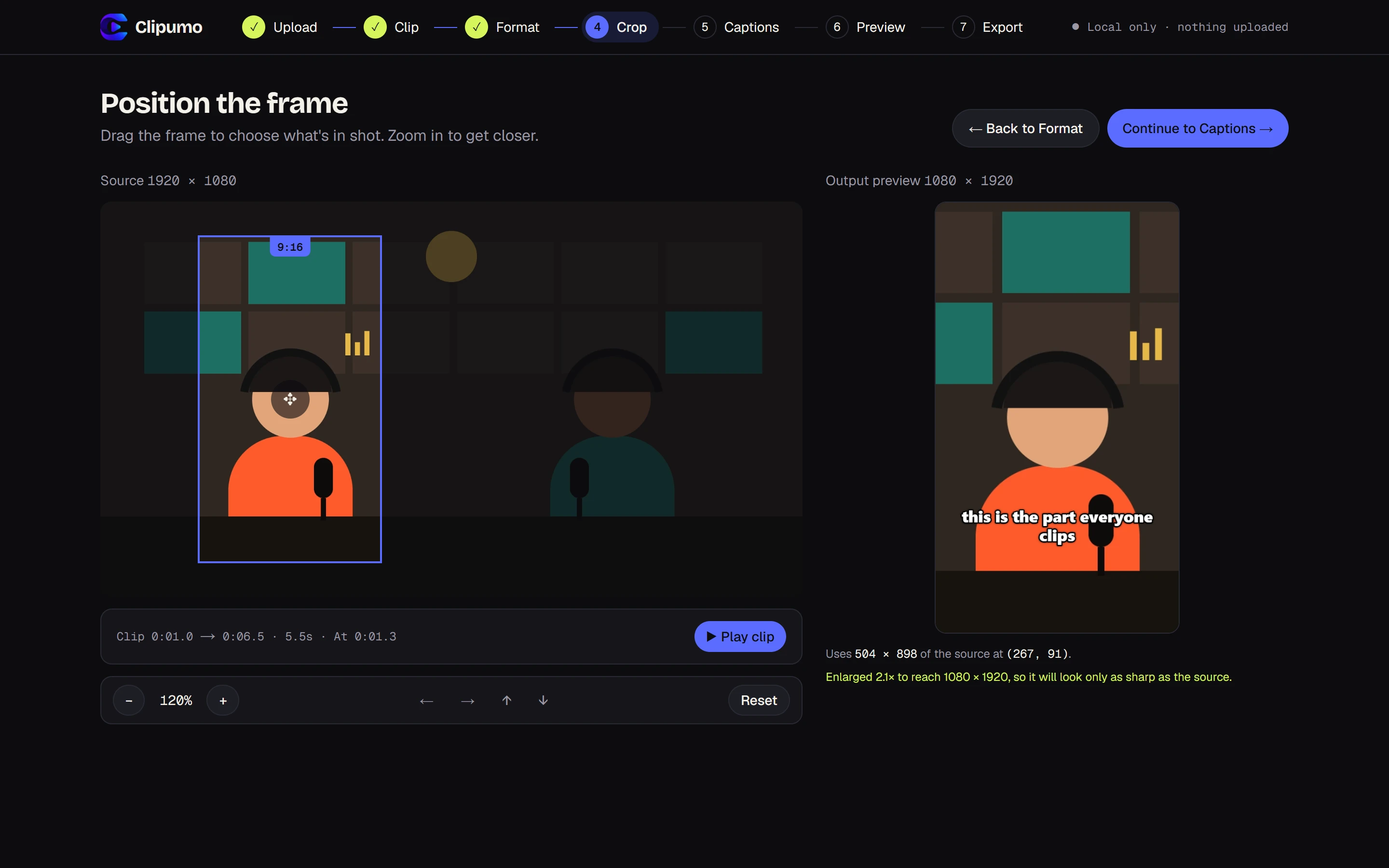
9:16 is the shape of a phone screen held upright. Cropping a horizontal video to 9:16 means choosing a tall window inside the wide frame, ideally around the person or action that matters. Clipumo lets you drag and zoom that window and shows the vertical result live.
The crop runs in your browser and the file never leaves your computer.
16:9 vs 9:16, in pixels
A standard landscape video is 16:9, for example 1920 × 1080. A vertical 9:16 window that uses the full height of that frame is about 608 × 1080 pixels, a bit under a third of its width. Clipumo scales that window to the 1080 × 1920 output.
From a 4K source (3840 × 2160) the same window is about 1214 × 2160 pixels, so the vertical result is noticeably sharper. Clipumo tells you whenever the crop has to be enlarged.
How to crop to 9:16
- 1Open your video and select the part you want on the timeline.
- 2In the Format step, choose 9:16.
- 3In the Crop step, drag the frame onto the subject. Zoom in (up to 400% on large videos) for a closer shot.
- 4Use the arrow buttons or arrow keys for small adjustments, and Reset to return to the centered crop.
- 5Preview the result and export the 1080 × 1920 MP4.
Good to know
- The crop can never extend past the edge of the video, so there are no black bars.
- One crop position is used for the whole clip. If the subject moves across the frame, export shorter clips with different framing.
- The same editor exports 1:1 (1080 × 1080) and 16:9 (1920 × 1080) too.
Questions
Does cropping lower the quality?
The cropped area is enlarged to 1080 × 1920, so from a 1080p source the result is softer than the original; from 4K it stays sharp. The editor shows how much the crop is enlarged.
Is the audio kept?
Yes. The clip's audio is included in the MP4 when your source has sound.
Can I crop a video that's already vertical?
A 9:16 video already fills the frame, so you only need to trim it. You can still zoom in for a tighter shot.